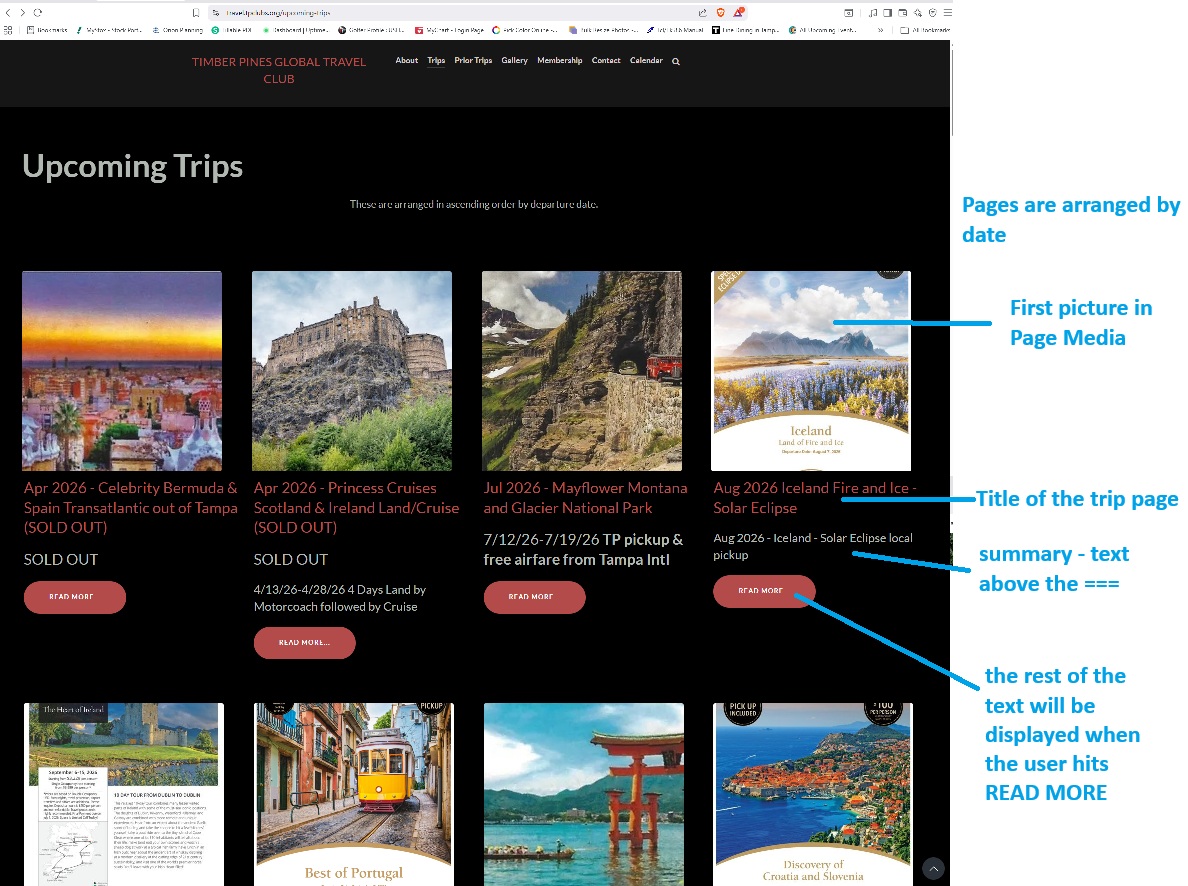
Add a trip Update
Special case of a single image otherwise
Open the image by double click, then print (ctrl-P or by menu) and Save as PDF or Microsoft Print to PDF. And save the file as trip.pdf
Jump to Add Web Page below._
Get a copy of PDF24 and launch it
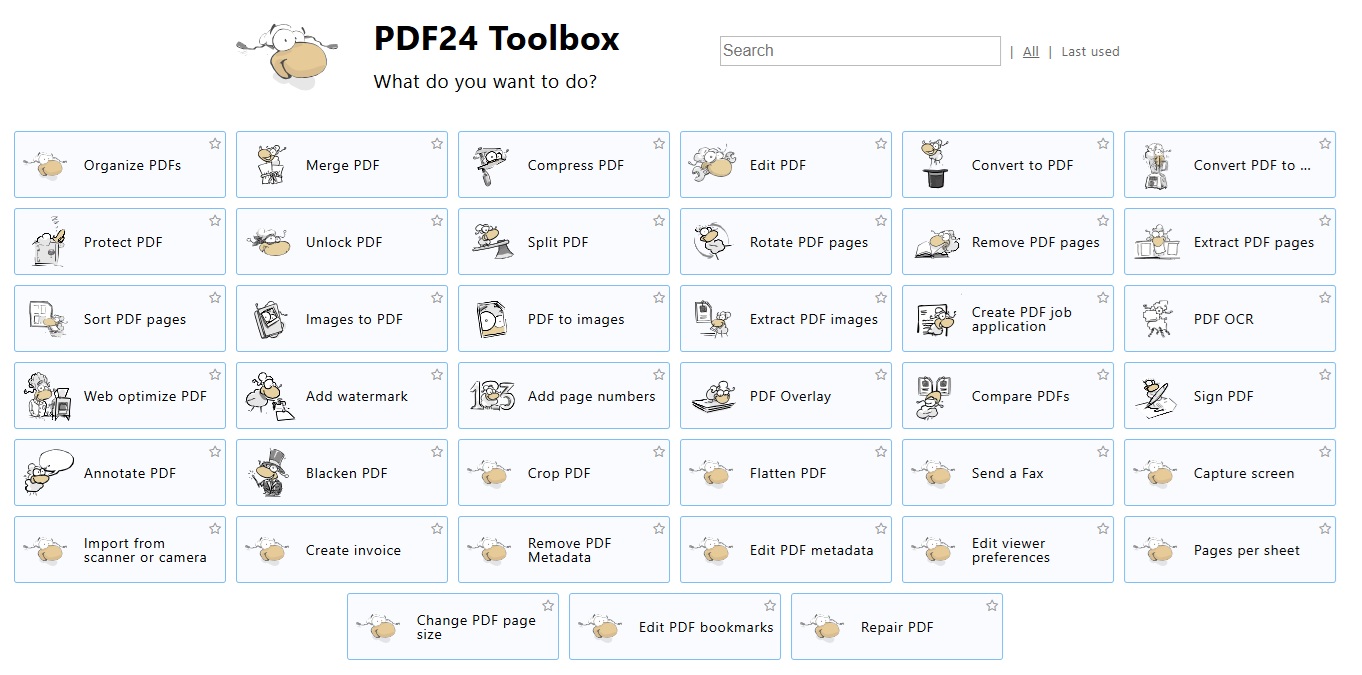
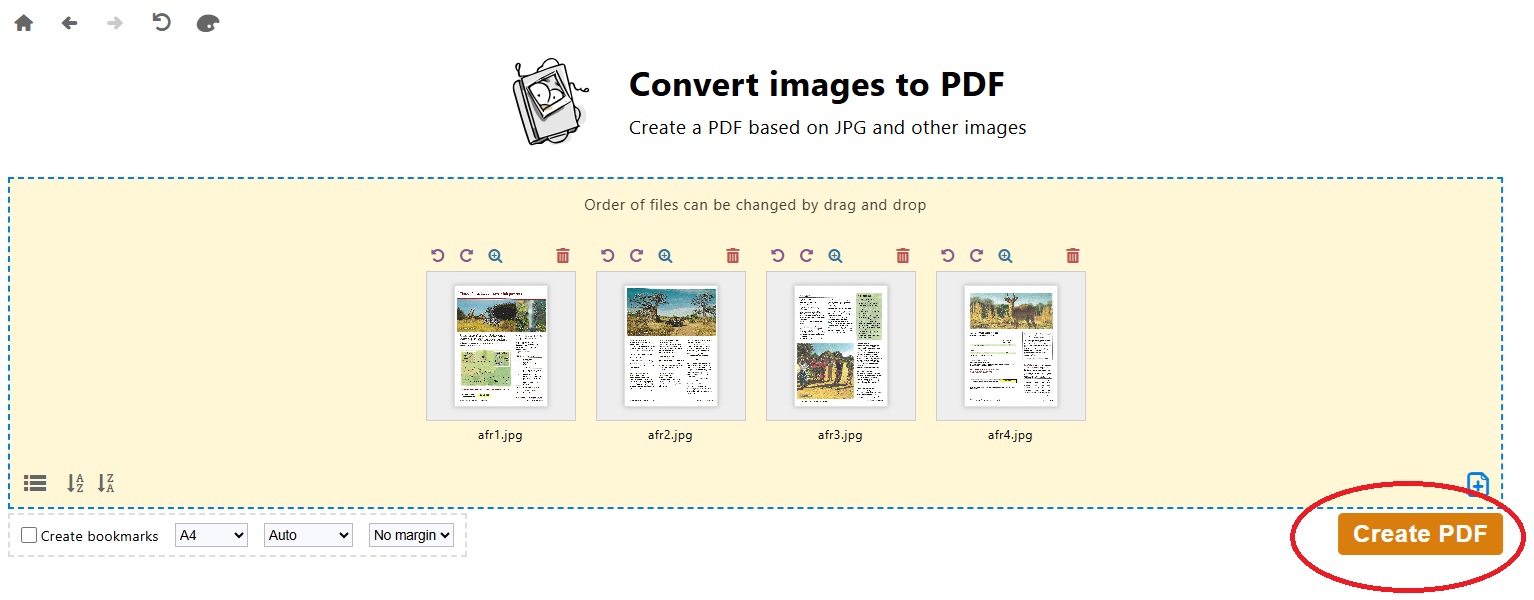
Convert Images to PDF
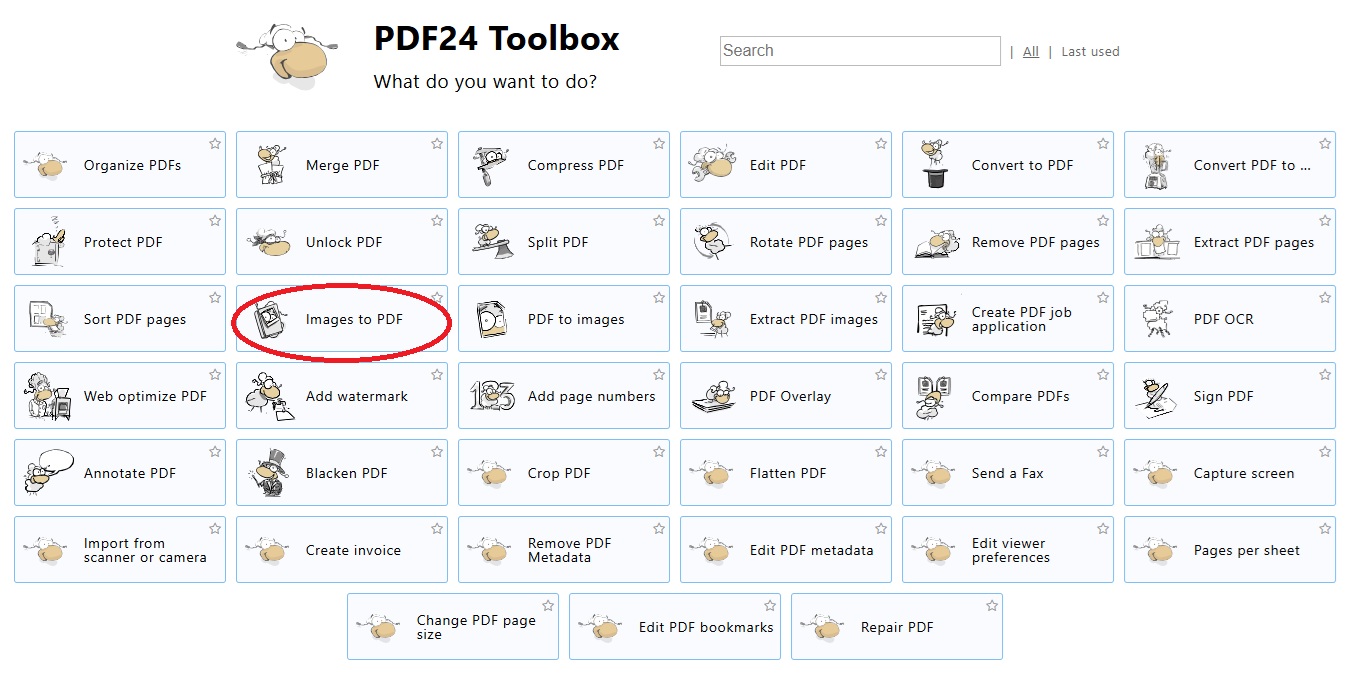
Drag your image files into this area
Make sure they are in the order you want -- you can drag them around
then Create the PDF
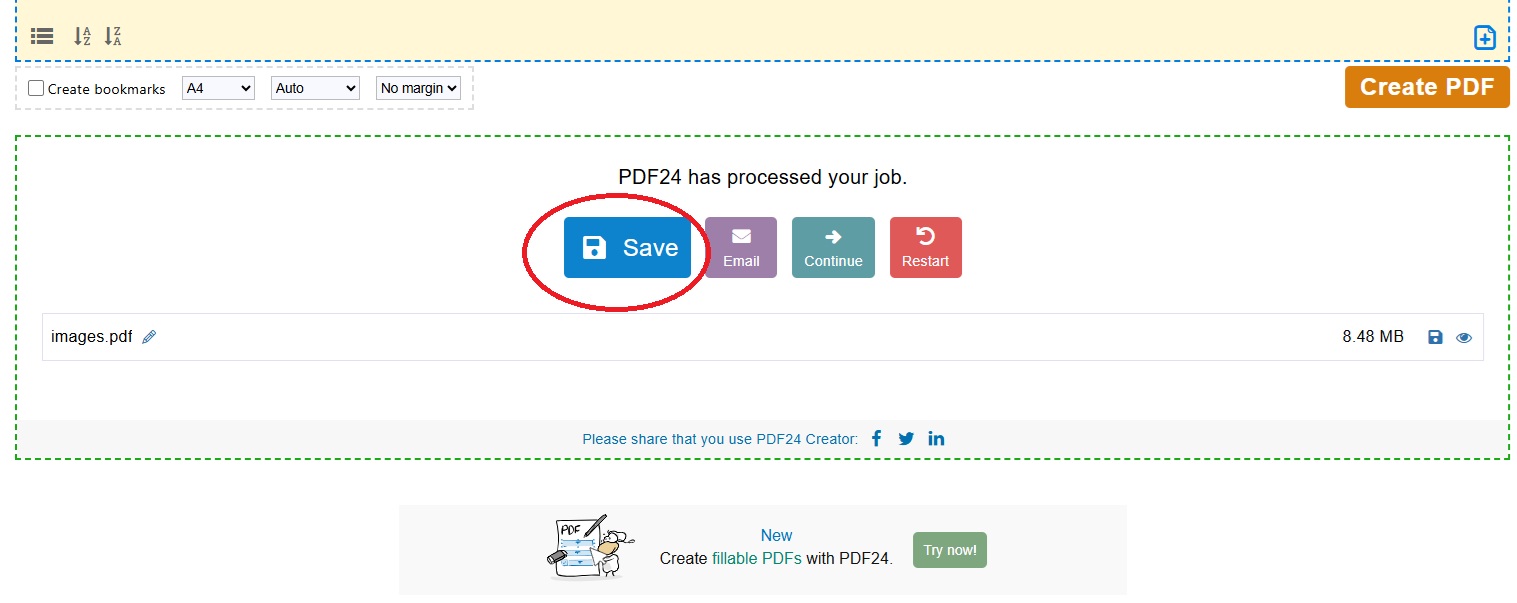
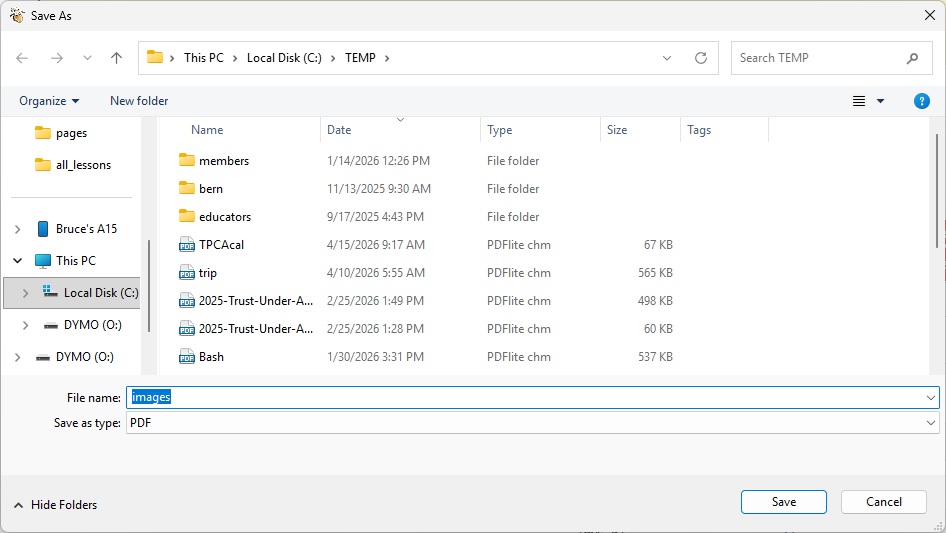
And save it -- call it trip.pdf
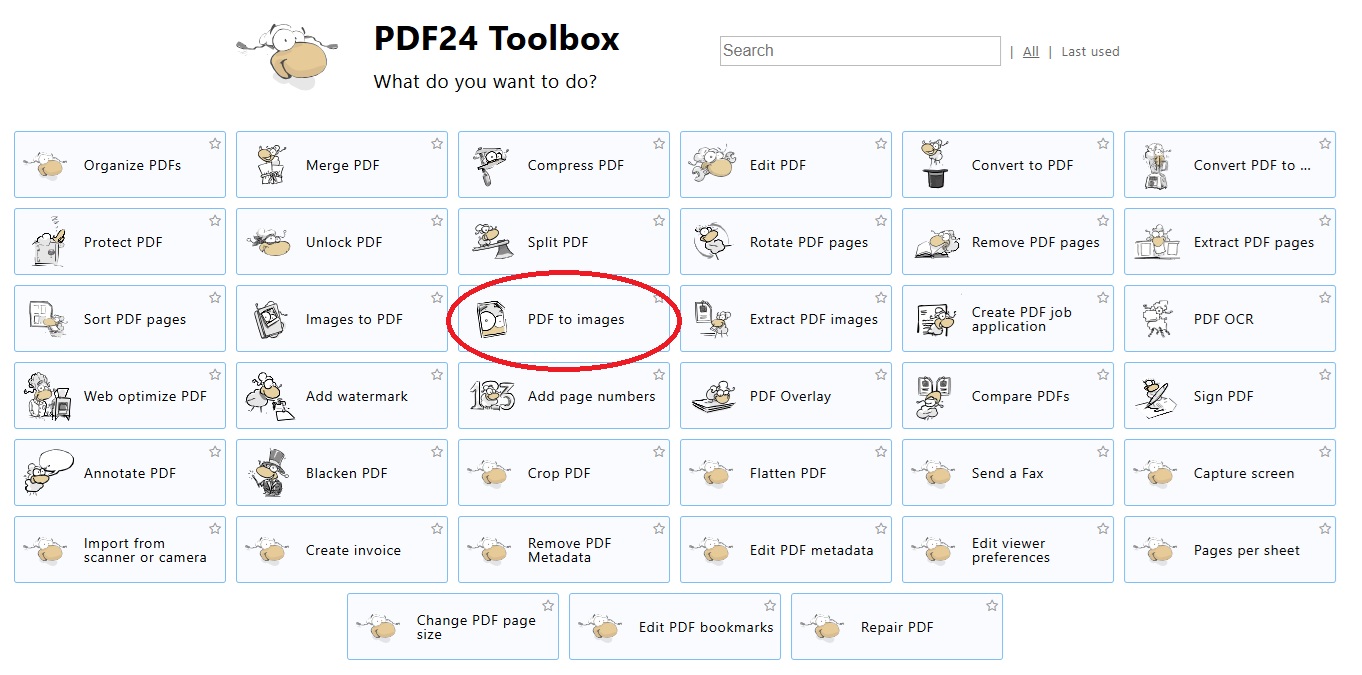
Convert PDF to images
Drag your PDF into this area
Then convert it
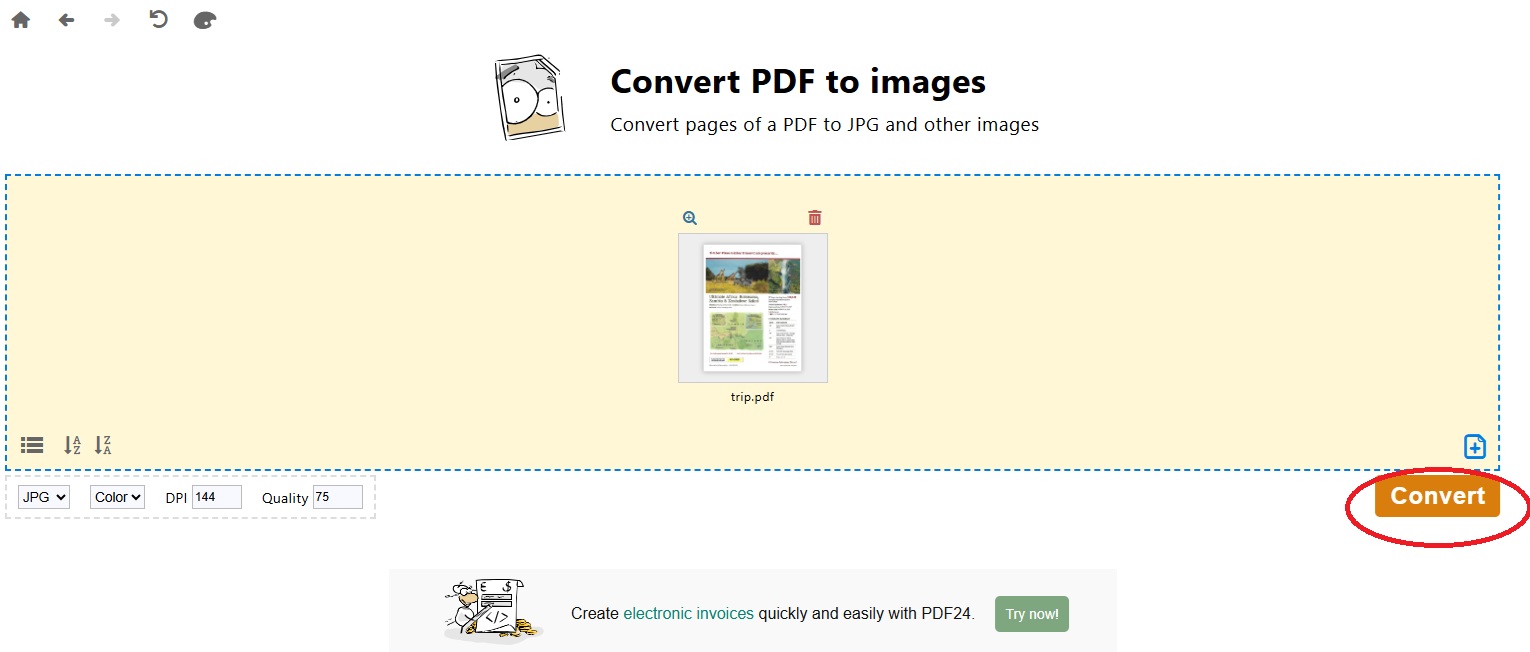
And save the individual image files -- DO NOT HAVE SPACES in the names -- this example created 4 images
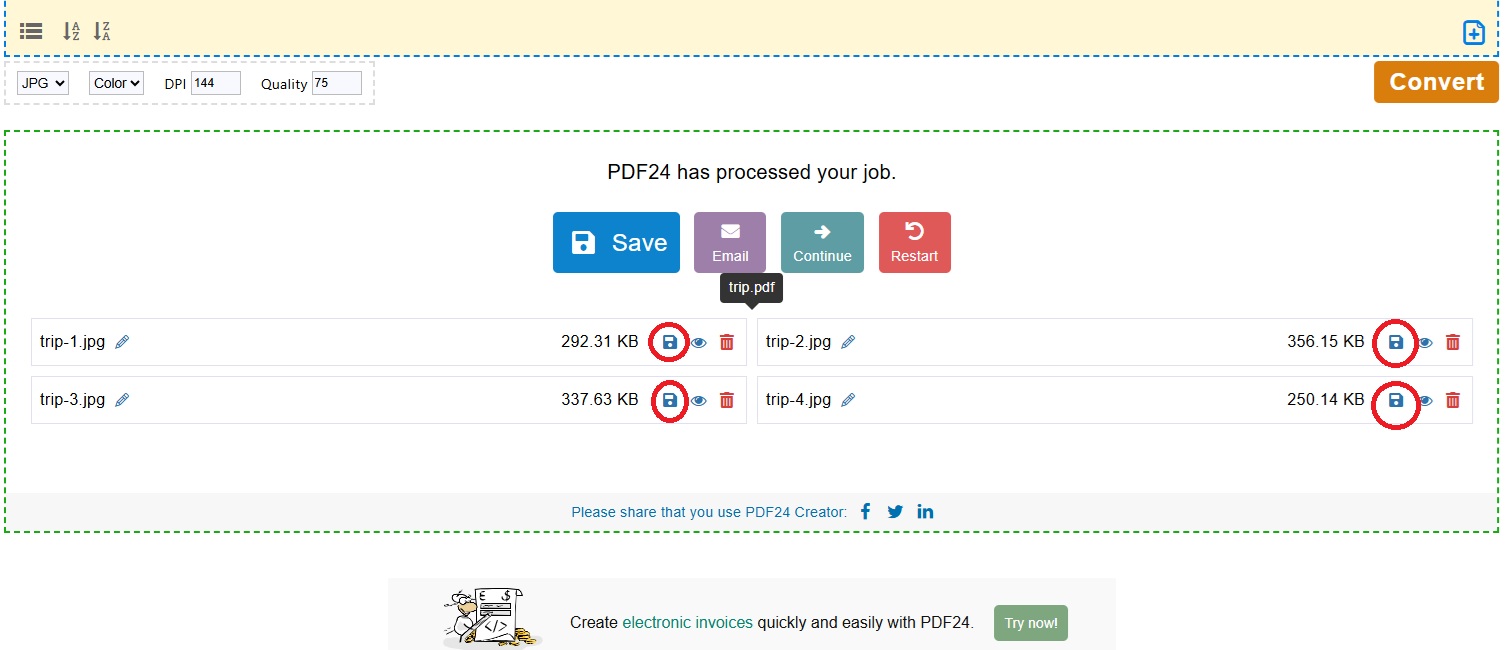
Add the trip to the webpages
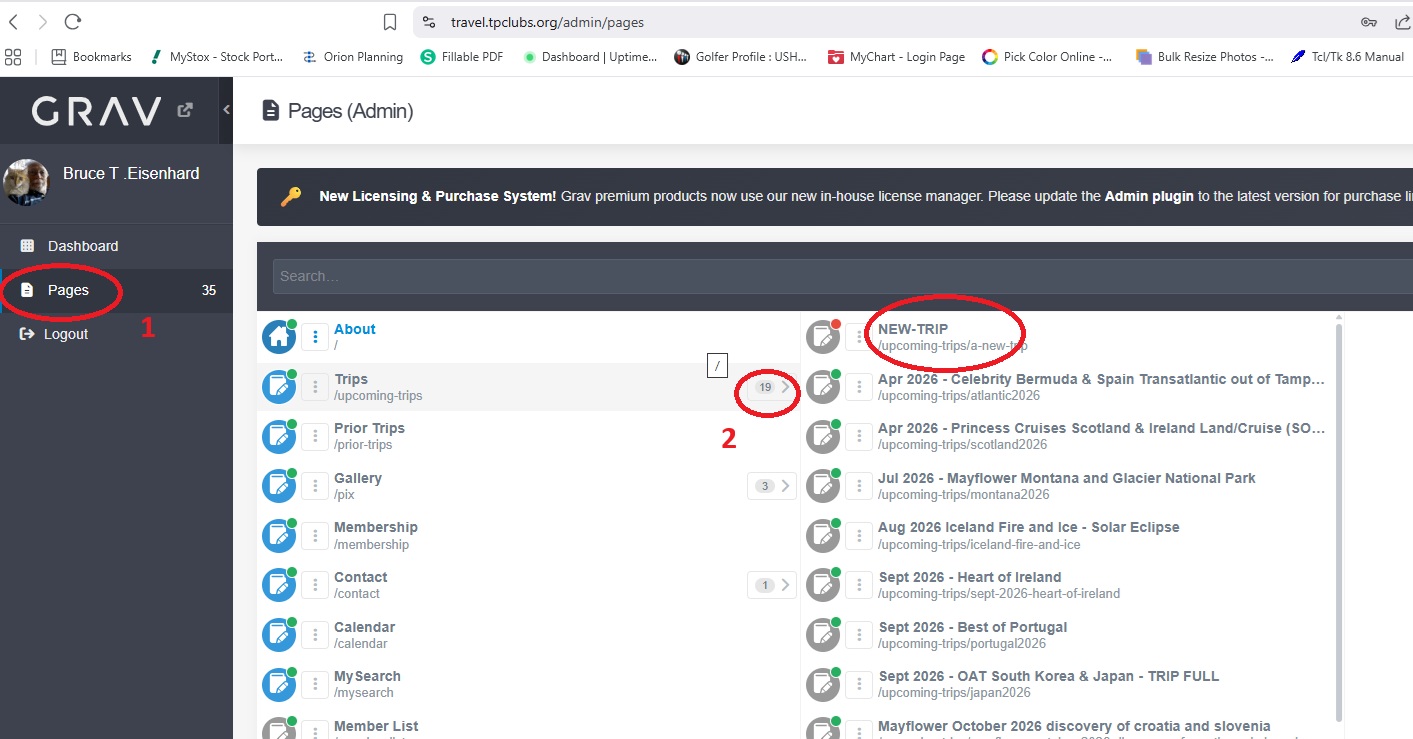
Now log into the travel admin page travel.tpclubs.org/admin

Select Pages, an the click on NEW-TRIP
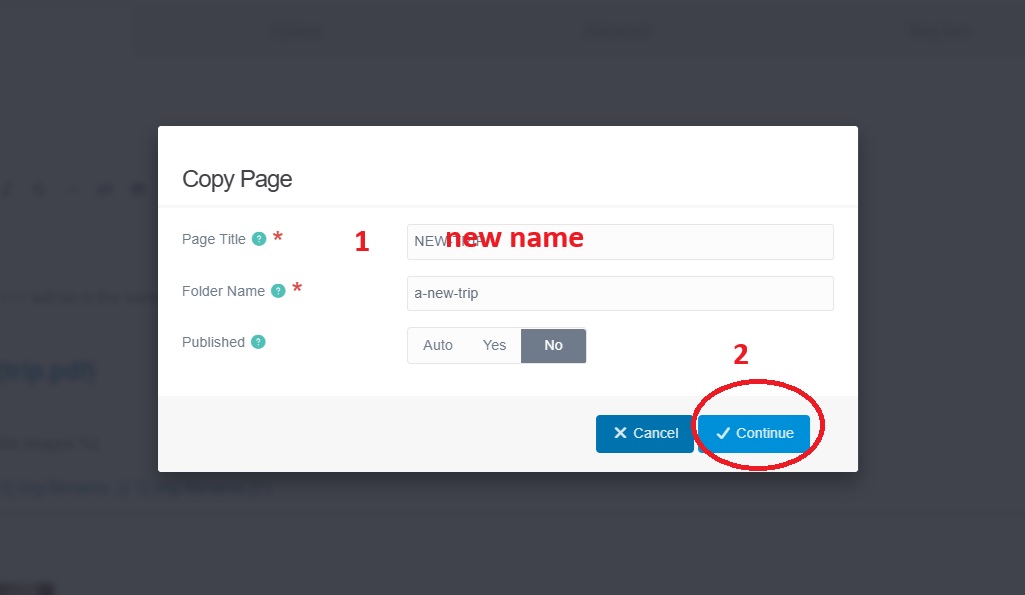
After it opens COPY the page
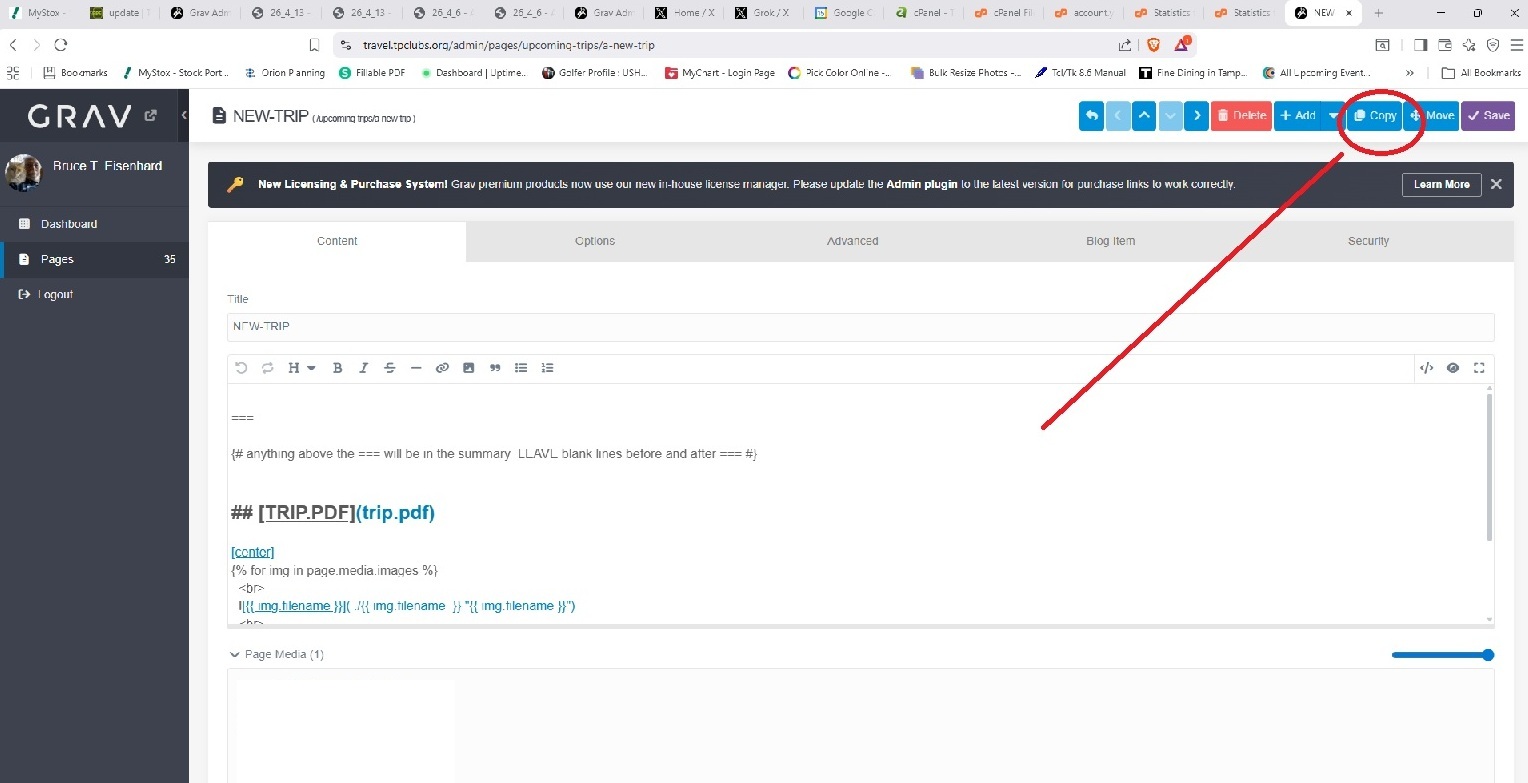
give the trip a name
In the Content tab
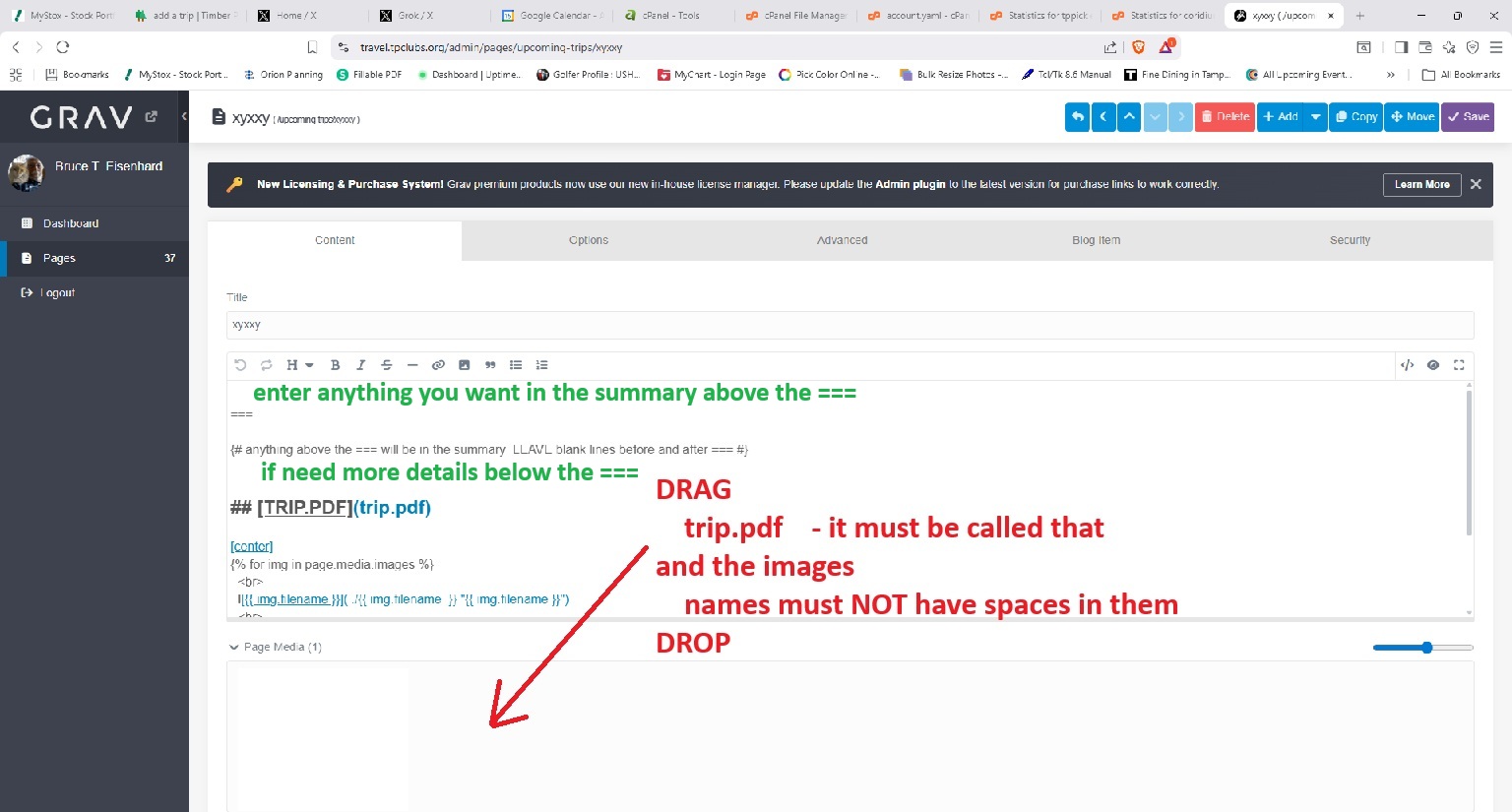
Drag and drop the trip.pdf file and the image files into the Page media area -- NO SPACES in FILENAMEs
Optionally enter text above the == will appear in the summary
Optionally enter more text description below the ===
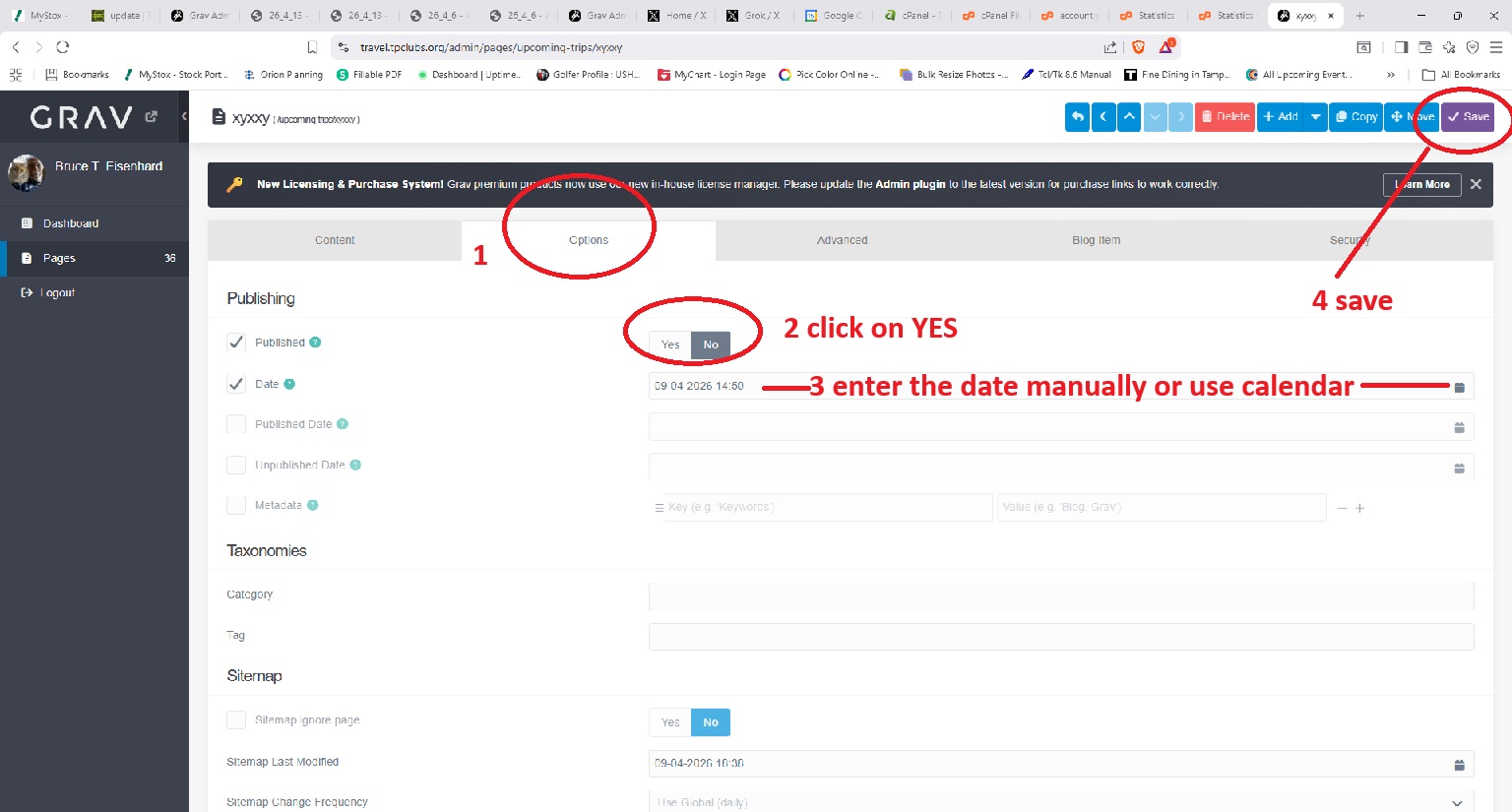
Then click on Options
Set Published to YES
Select the start date -- calendar icon on right easiest
and SAVE
You are done with the website, and below will be how the page appears
You should also update the Global Travel Club Google Calendar